Help
Teacher guide
For how each format is scored, see the question guide.
Sign up and sign in
Create your account
- Open Create an account and choose I teach.
- Type your name, your email address and a password.
You are signed in at once, in a workspace no other teacher can see.
Confirm your address from the email that follows. It is what lets you back in if you forget your password.
Sign in, or reset your password
Open Sign in and type your email address and password.
- Forgot it? Press Forgot your password?, then Email me a sign-in link. The link signs you in and asks for a new password.
- Sign in with an emailed link instead signs you in without a password.
- To change your password, open the account menu (your initials, top right), choose Account and press Change your password.
- The account menu also holds Help, the theme (System, Light or Dark) and Sign out.
- If no email arrives, check the spelling. The form never says whether an address has an account.
Share a workspace with colleagues
To share quizzes, classes and results, work in one workspace. Invite a colleague by email from Workspace. If you are joining theirs, ask for the invitation before you sign up.
Create a quiz
A quiz holds your questions and case studies.
- On your library, under New quiz, type a name.
- Press Create quiz.
Folders, tags and search
Sort a large quiz into folders, tag questions, and search by text or tag.
Import questions with AI
Claude copies the questions in your documents into a quiz. It never writes an answer or a rationale. If a quiz has no Import with AI, it is not turned on for your workspace.
- In a quiz, press Import with AI.
- Choose up to 5 documents: PDF, Word .docx, Markdown or text.
- Confirm you may use the content and that it has no real patient information, then press Upload and read.
- Wait while it reads. You can leave and come back. Then press Review the questions.
Review what it found
- Ready: imports as it is.
- Needs an answer: the document marks no answer.
- Needs a fix: something did not read cleanly. The card says what.
- Not importable: not an NGN question, such as a discussion prompt. It is left out.
Show source puts the document's words beside the question. Drop leaves a question out. Change type reads it again as another format, which uses some of the monthly allowance.
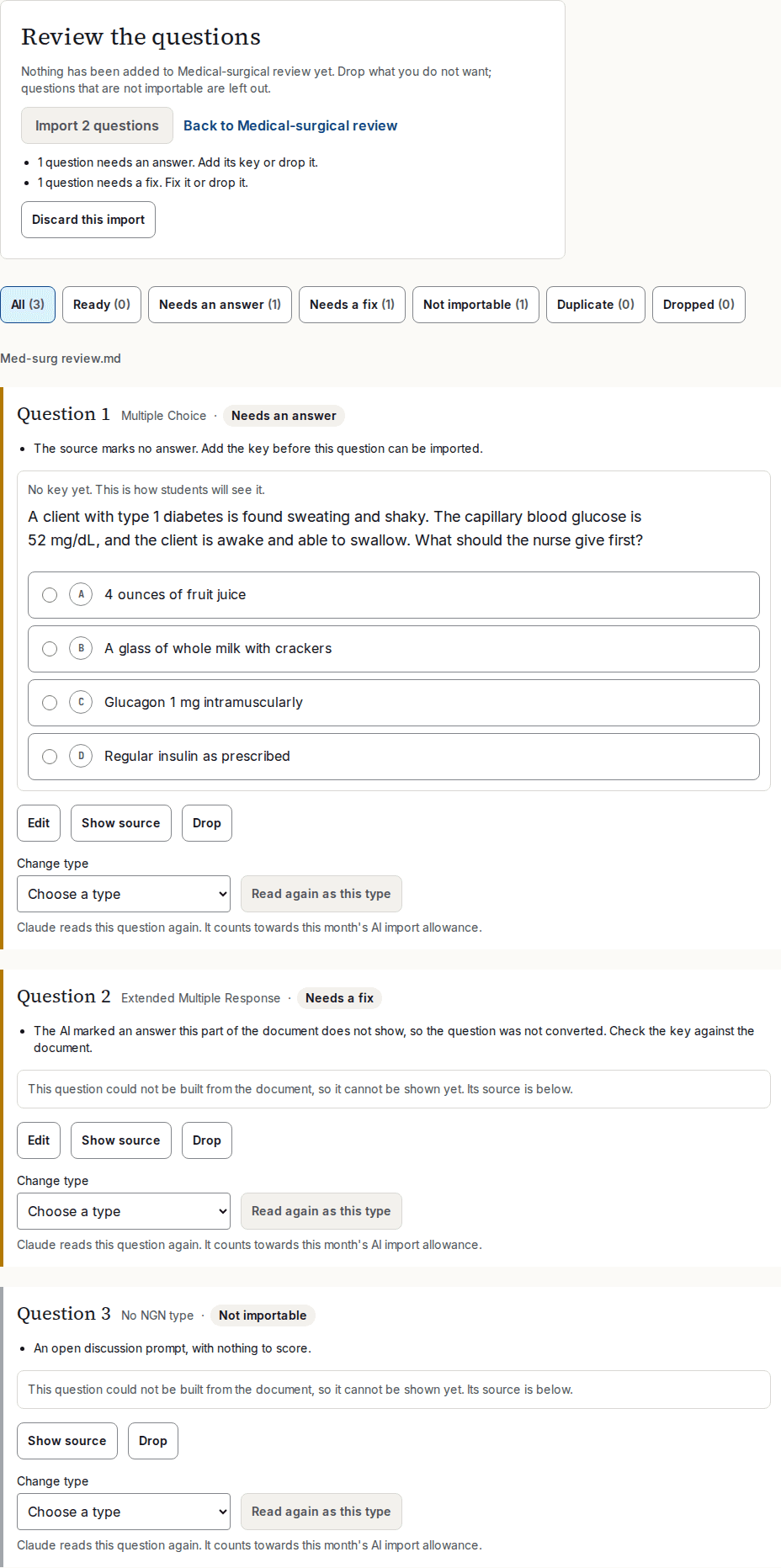
Add a missing answer
Press Edit on the question, mark the answer and press Save. It is then Ready. A case study cannot be edited here: import it and edit it in the quiz, or drop it.
Import or discard
Once nothing needs an answer or a fix, Import adds every kept question to the quiz as a draft, all at once. Write a rationale and publish each as usual. Discard this import keeps nothing. Either way the uploaded files are deleted. An import left for 7 days is deleted.
Limits
- A missing answer or rationale is flagged for you, never made up.
- Pictures are not imported. A question that needs one is flagged.
- Your workspace has a monthly allowance. The upload page shows what is left.
- One import holds up to 5 files, 100 PDF pages and 150 questions.
Write questions
- In a quiz, press New question and pick a format.
- Write the question text, the choices and the answer.
- Write the rationale: why the answer is right.
- Press Save draft to keep your work, or Publish when it is ready.
Drafts and publishing
- Only published questions go into live sessions, assignments and practice.
- Publishing needs a general rationale. The editor lists anything missing under Problems to fix.
- Quality warnings, such as a select-all-that-apply question with every option correct, are advice and never block you.
History, duplicate and archive
Every question keeps its version history, and can be duplicated, archived and restored.
Case studies
In a quiz, type a Case study title and press Create case study. Then write the patient record, and add one question for each of the six clinical judgment steps.
Create a class and invite students
- Open Classes.
- Type a Class name and press Create class.
The class page shows an invite link, its QR code and an eight-character class code.
Invite link and QR code
A student opens the link, types their name and email address and chooses a password. They are on the roster at once; confirming their address can wait.
Class code
A student who has an account, or creates one first, types it under Join a class. It is two groups of four, so it is not mistaken for a live session's join code.
Time zone
Set it on the class page, so open and close times show in your local time.
Remove a student
A removed student cannot rejoin with the link or code they have. To stop both working for everyone, replace the link: the class code and QR code change too.
Assign a quiz
- In a quiz or a case study, press Assign.
- Choose the class, and when the assignment opens and closes.
- Choose how many attempts each student has: 1 by default, up to 3. The best attempt counts.
Shuffle answer options reorders options for each student where the format allows it.
What students see
- The assignment is under Open assignments on their home. Answers save as they go, and they can resume on any device.
- Scores, answers and rationales stay hidden until the assignment closes.
- An attempt still open at the close is submitted with what it saved.
Close time
Once an assignment has closed, its close time cannot move.
Email reminders
When email is set up for your site, students get a reminder when an assignment opens and a day before it closes. Anyone who has already submitted is skipped.
Start a live session
- In a quiz or a case study, choose Teacher-paced or Student-paced and press Start a live session.
- Put the lobby on the projector. Students go to the join page, type the six-character join code or scan the QR code, and give a display name. They need no account.
- For the projector, press Open in a new window or Present on this screen in the lobby: that view shows no controls.
- Set Time per question if you want a timer, then press Start.
- Press End live session when you are done.
Teacher-paced and student-paced
- Teacher-paced: you move the class on. Press Next question, or pick any question on the strip to skip ahead or go back.
- Student-paced: each phone moves through the quiz alone, and you watch a progress board.
Results and answers
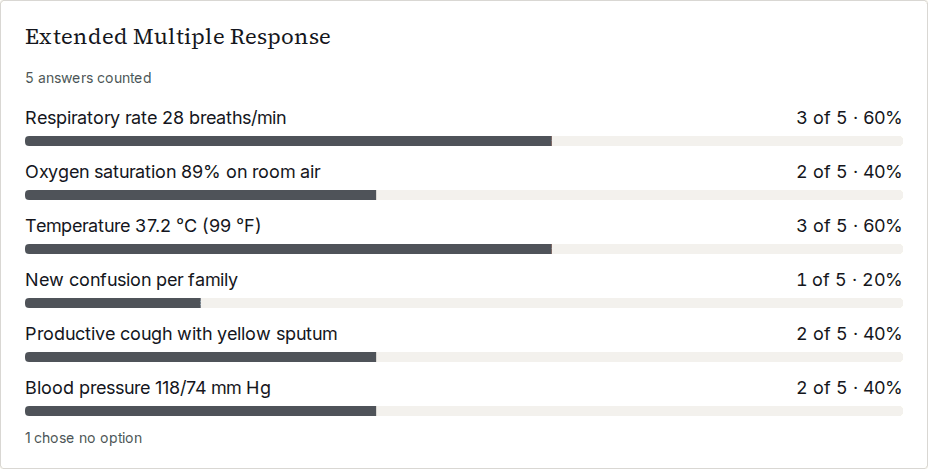
- Teacher-paced results build as students answer, with nothing marked correct, so the screen is safe to project. Hide results takes them off the screen.
- Show answer sends the answer and rationale to every phone. In a student-paced live session, Show answers opens every question's answer at once.
Timer
When the timer runs out the question stops taking answers. The live session does not move on.
Read the reports
- Live sessions: press Open the report after you end a live session. Earlier ones are under Live sessions.
- Assignments: View progress shows who has started and submitted while the assignment is open, with no scores. View report has the scores after it closes.
- Read a report by Students, Questions or Clinical judgment steps. Download CSV exports it.
Share a quiz for practice
In practice, students answer a quiz on their own and see the answer and rationale after each question. It is not graded.
- In the quiz, under Practice, choose Share for practice.
- Pick a class.
Students find it under Practice on their home. Stop sharing closes it at once, including for students part-way through.
Practice shows the answers
Students in that class can see the answers to a shared quiz, so do not grade them on its questions. If you assign from it, the form warns you how many answers the class can already see.